
Overview
The View page allows you to see exactly where your employees sit within your internal salary structures. This is important because it helps you identify pay gaps, ensure market competitiveness, and manage compensation budgets effectively.
Prerequisites
-
Permission level: Admin only
-
Data needed: Updated employee salary data and active salary bands
-
Integration status: HRIS (Human Resources Information System) integration active
Step-by-step instructions
Step 1: Visualise employee distribution
Navigate to Bands > View to see how your team's pay aligns with your internal ranges.
-
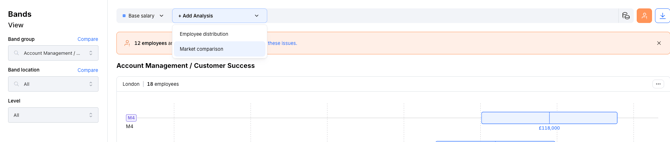
Use the dropdown at the top of the screen to view how your employees sit within each salary band.
-
Click on any band to see more detail on the employees within that band, their position in the range, and their compa-ratio – a metric used to compare an employee's salary to the midpoint of the salary range for their position.
-
Use the second dropdown to add a gender overlay to see how band position varies by gender.
-
Use the third dropdown to add a performance overlay to see how compa-ratio aligns with uploaded performance ratings.
Step 2: Compare against the market
Check how your internal pay ranges stack up against external benchmarks.
-
Use the dropdown at the top of the screen to view how your salary bands compare to the market.
-
Use the Target percentile feature to select your chosen target percentile – this shows you where your target sits compared to your band midpoint.
-
Switch between viewing the market range and a market target.
Tip: Use the filters on the left-hand side to toggle between different band groups and locations to get a more granular view of your data.
Step 3: Compare roles and locations
You can also compare ranges side-by-side to ensure internal equity.
-
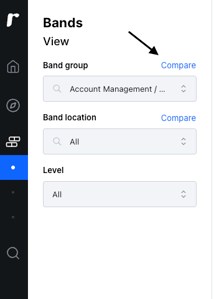
Compare bands across different roles to check how ranges line up.
-
Compare bands across locations to see how the range for different regions varies.
Still need a hand?
If you have followed the steps above and the data does not look right, our team is ready to dive deeper.