
Overview
This guide will walk you through creating an API key within PeopleHR and entering it into the Ravio onboarding flow.
Prerequisites
Please ensure you fulfil all the requirements to set up the integration:
- You are a HR Admin in your company's PeopleHR instance, or someone has shared their access with you.
The way that you check this is by making sure you can see the HR Admin option when you click Access in the top left corner.
Step by Step Instructions
-
Generating your API key
In your PeopleHR account, click Access in the top left hand corner, and select HR Admin (You may not see the full list in the screenshot below).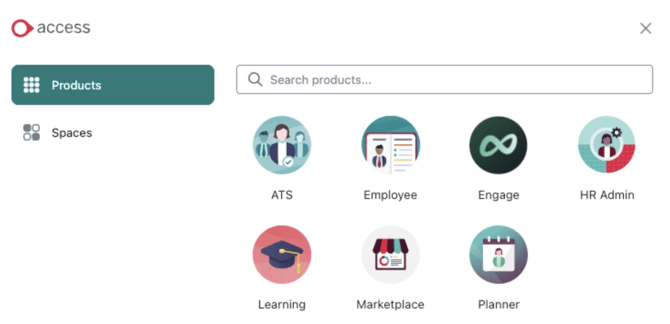
Go to Settings on the left sidebar. Select API and click the + icon.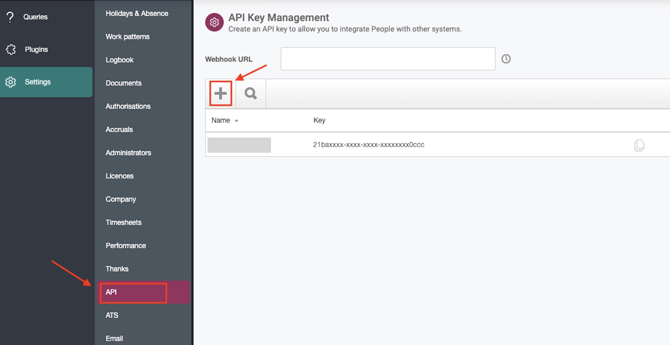
-
Assigning the Correct Entitlements
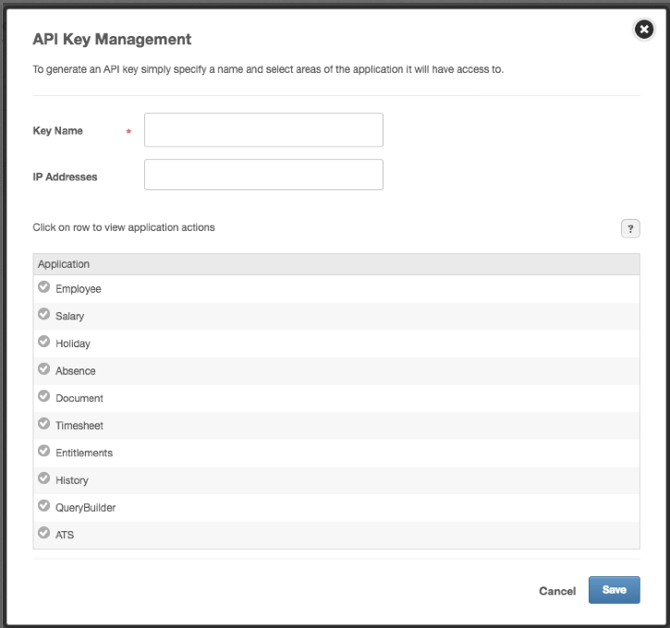
On the API Key Management screen, type in a name for the key.
For the application actions, select all for Employee, Salary and History. Press Save
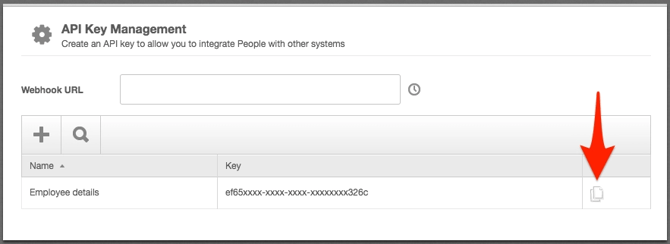
Copy and store your Key in a safe place.
-
Enter your API key in the Ravio Onboarding flow
Finally, enter your copied API key from the previous step in the Onboarding flow.

Custom fields
PeopleHR has specific limitations with their API regarding sharing any custom fields. The only custom fields that PeopleHR allows access to through their API are 5 preset fields:
- APIColumn1
- APIColumn2
- APIColumn3
- APIColumn4
- APIColumn5
If you want to expose custom data you need to populate one of 5 preset fields that PeopleHR have made available with the data and let Ravio know which field you have used.
Ravio will then make this mapping on our side to make sure the right data is present.