
Prerequisites
You have Administrator permissions in your company's BambooHR instance to be able to set up this integration.
❓ If you do not have this access, please reach out to your company’s BambooHR Administrator who can either share this access with you or continue the setup themselves.
Please have two windows open for this (this will speed things up from step 3 onwards):
- Ravio in an incognito window, and
- BambooHR in a non-incognito window.
Step by Step Integration Instructions
The BambooHR Integration works by creating a custom access level in BambooHR that provides access to the specific information that Ravio requires. This user is then connected to the Ravio environment to give Ravio the access it requires.
Step 1 - Identify your BambooHR subdomain
Your company’s subdomain of BambooHR is present in your URL before ‘.bamboohr.com’. In the example screenshot below the subdomain is ‘raviobambootest’.

Navigating to the Ravio onboarding flow, you will be asked to enter this as the first step.
Step 2 - Create new Access Level in Bamboo
The next step of the integration is to create a Ravio specific Access Level in BambooHR to be able to assign only the required permissions.
The first step is to navigate to the ‘Settings’ menu in the top right of the BambooHR home screen.
In the Settings screen, go to ‘Access Levels’ on the left hand menu. We now want to create a custom access level for the Ravio integration and click the ‘+’ button next to ‘Levels’ to start this process. You want to make sure that you select ‘Custom Access Level’ as this will allow you to pick the specific data points that you require.
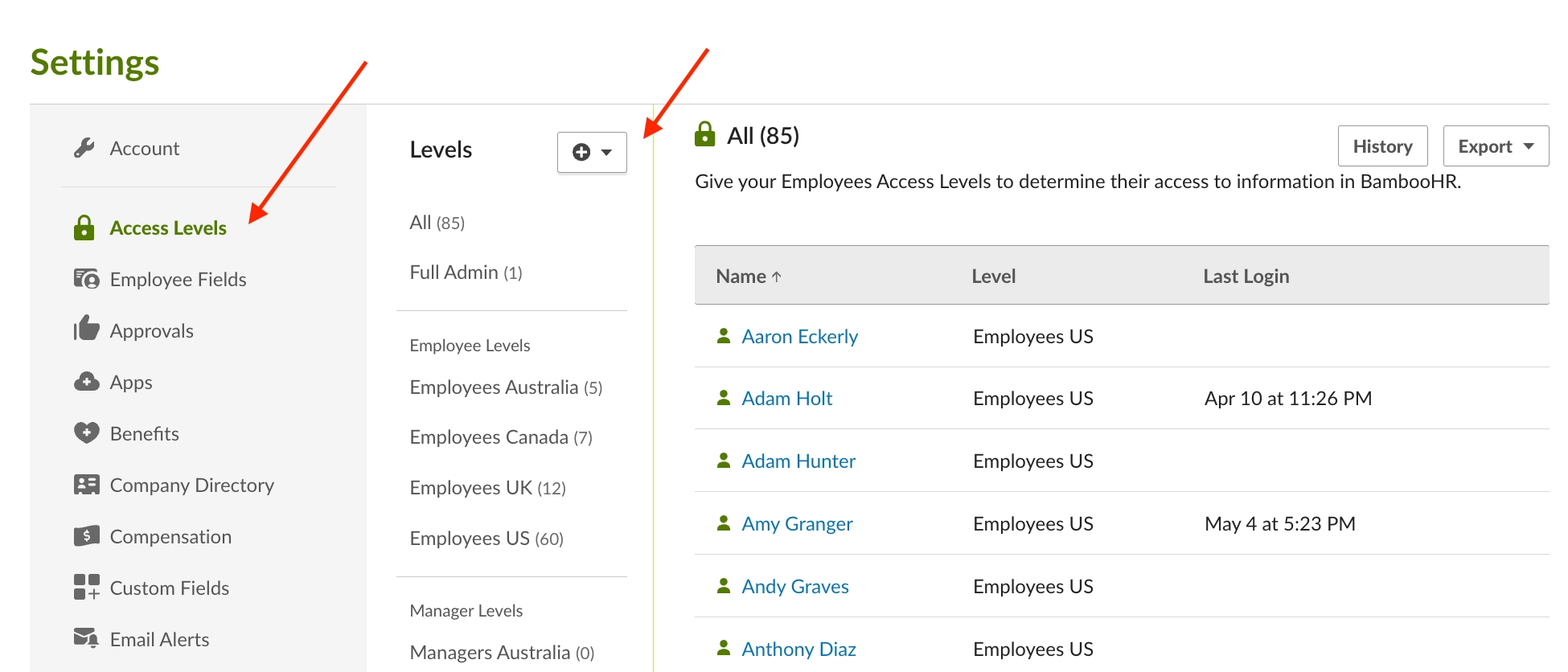
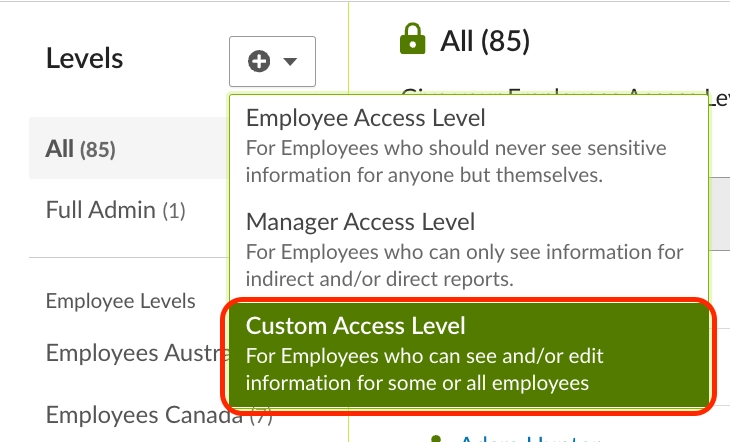
In Step 1 of the ‘New Custom Access Level’ screen, make sure you name your Access Level something descriptive and give it a relevant description. You do not need to select anything on Step 2, please skip straight to Step 3 in this process to select the permissions.
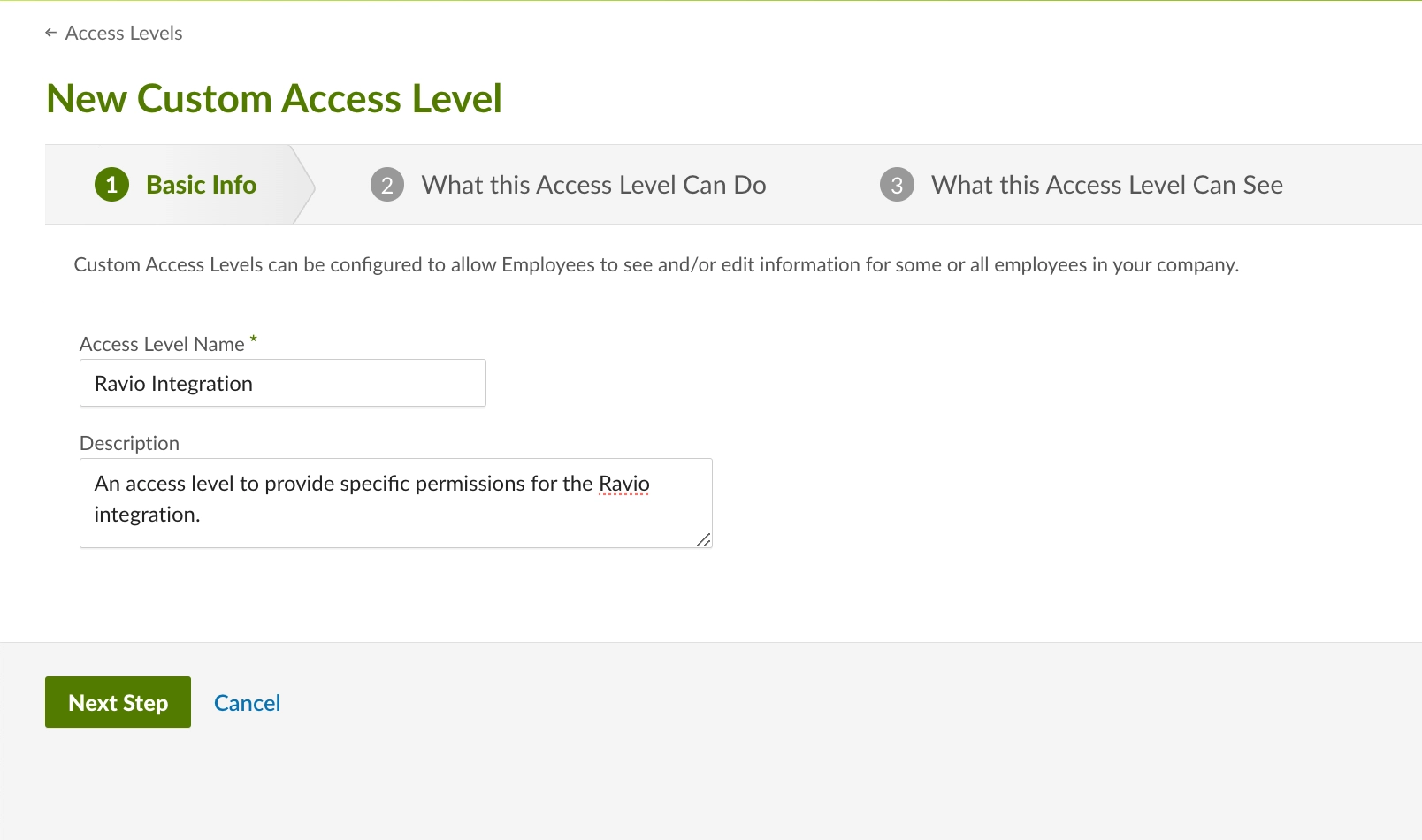
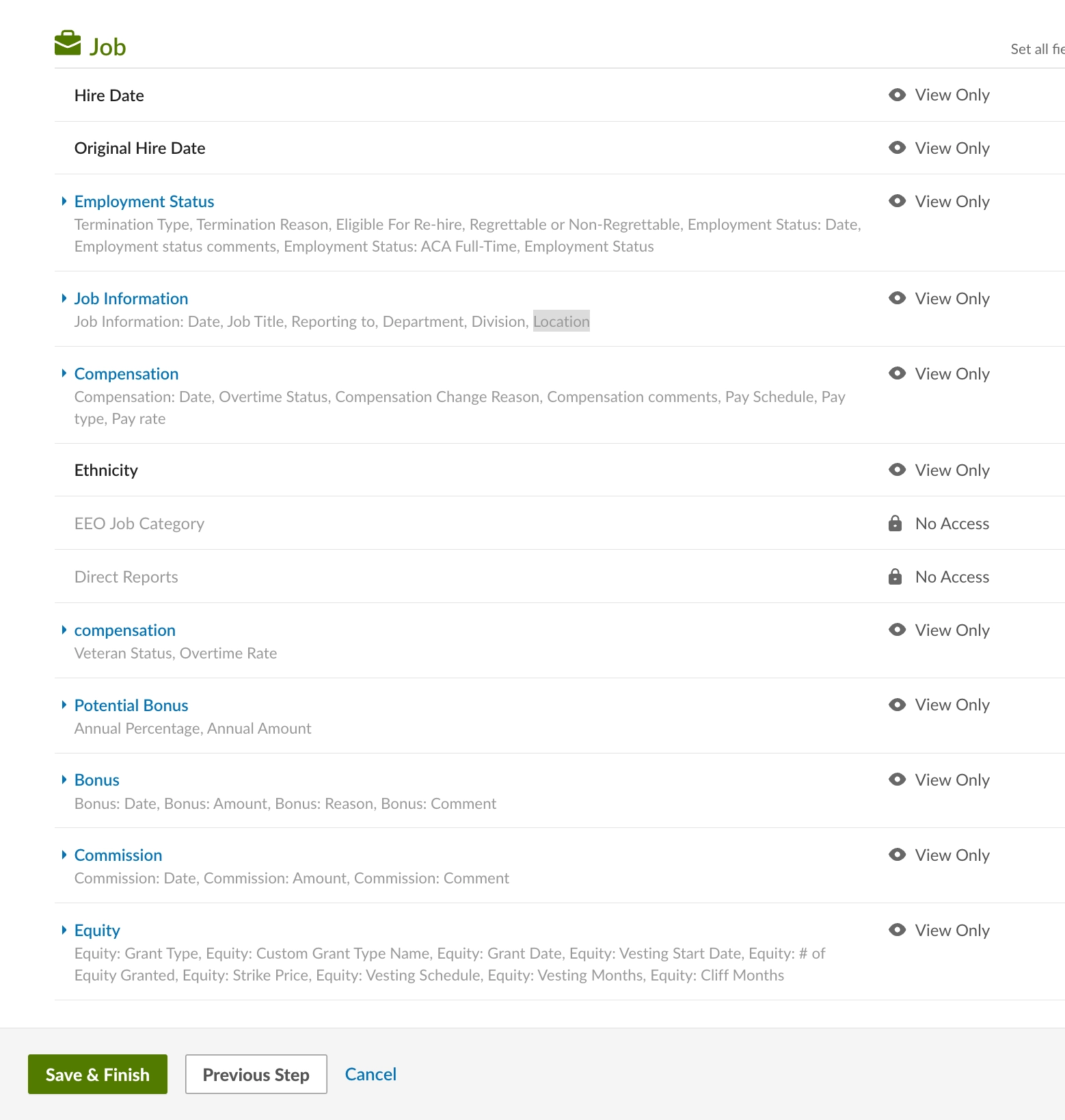
Step 3 is where all of the permissions are selected. To check which permissions are required for Ravio to function, continue through the Ravio Onboarding process and get to the screen as per the screenshots below. This will tell you which permissions you need to enable in Step 3.
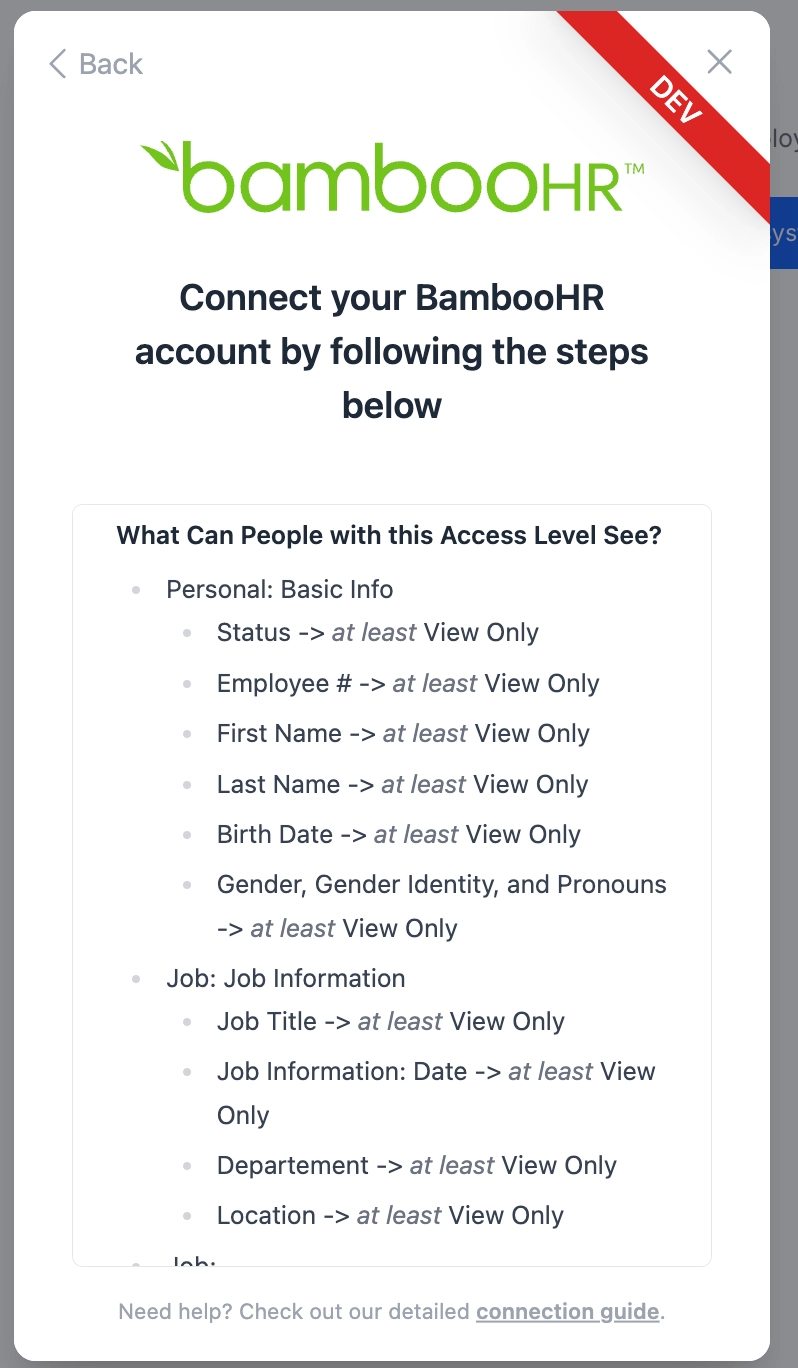
To update the permissions you can click on the ‘Eye’ logo on the right hand side as you hover over the required permission. Repeat this process for all permissions on the screen in Ravio. All required permissions should be ‘View Only’.
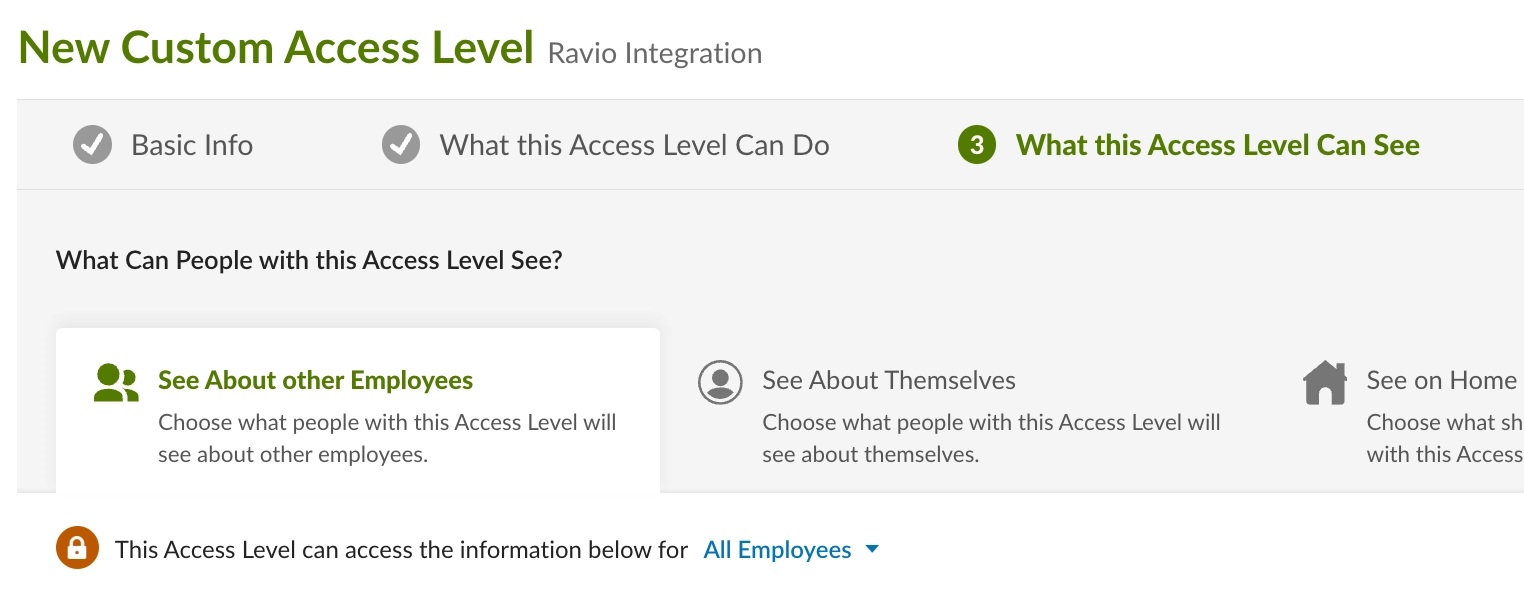
🚨 The only other item you need to make sure is selected before saving is making sure the ‘This Access Level can access the information below for’ toggle is set to ‘All Employees’.
Once all these steps are complete click ‘Save & Finish’.
Step 3 - Create & assign user to this Access Level
We now need to create a new user with this Access Level to be connected to Ravio. We specifically want this to be a ‘Non-Employee User’ as we want to avoid impacting any real employees in your BambooHR instance!
❓ As the name suggests a Non-Employee User is a user that can access your BambooHR instance that is not connected to a user in your employee hierarchy. Typically this is used for Integrations like we are.
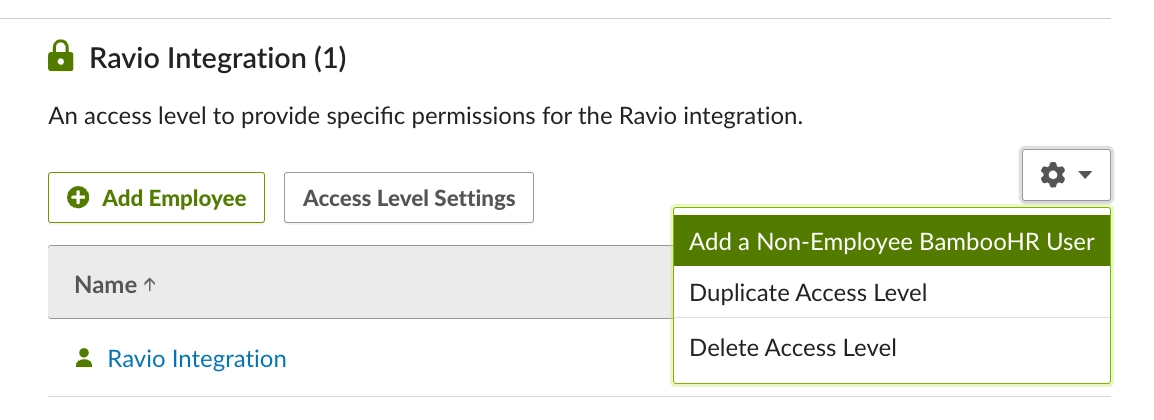
To do this navigate to the newly created Access Level in the Settings menu. Once there click the cog in the top right of the screen and select ‘Add a Non-Employee BambooHR User’. This will take you to the required screen to enter the user details.
🚨 Make sure to add a real email address. You will need to set the password for this user!
Once you click Save here the email address entered will receive an email to set the password.
Step 4 - Enter Details in Ravio
🚨 Please make sure you are doing this step in an incognito / private window! You want to sign in here with the new non-employee user that we have just created. If you are already signed into BambooHR with your own user, doing the below step in a non-incognito window will sign you in with your own user rather than the new user!
The last step here is to enter the details for this user in the Ravio Onboarding flow. Click ‘Sign in with BambooHR’ and enter the details of the new Non-Employee User that you just created.
Enabling Variable Pay via Bamboo
Ravio supports processing variable pay using BambooHR’s standard bonus and commission fields. To ensure these are shared as part of the integration make sure these are selected as “View Only” in the Ravio Integration Access Level.

If you use custom fields, follow the same process to ensure that the custom fields that contain this information are set to “View Only” in the Ravio Integration Access Level.
Integrating With SSO
Ravio’s integration with BambooHR is set up via OAuth. This means that we need to create a Bamboo user account to link between Ravio & Bamboo.
If you are creating the Ravio-specific non-employee user, you need to ensure that you are creating this user with an email address that is able to log in to BambooHR via SSO.
❓ Who do I ask about this internally?
- This is typically your InfoSec team (or whichever team manages your SSO configuration)
- They will be able to either provide you with an email address that works with SSO, or create a brand new email for you that you can use for this purpose.