
Spreadsheet upload
Use the template provided by Ravio to upload details of your variable pay. Data should be provided for each employee who is eligible for variable pay compensation.
Step 1: Navigate to manage my data
From your main dashboard, expand the sidebar menu.
Select Manage my data at the bottom of the list.
Step 2: Open variable compensation settings
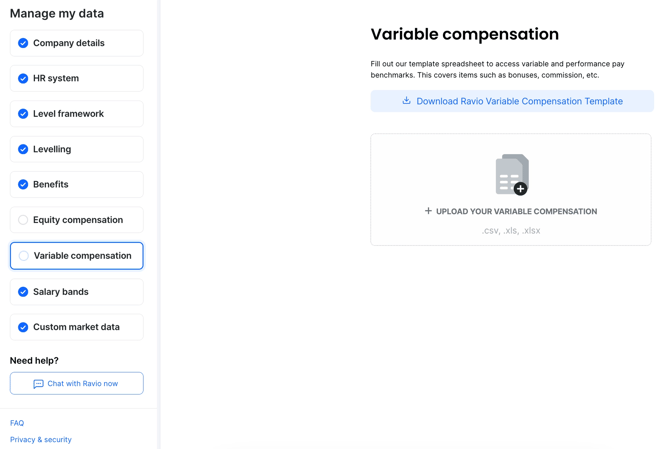
In the left-hand navigation menu of manage my data, click on Variable compensation. This will open the dashboard showing your last upload status.
Step 3: Download the system template
Click the Download Ravio Variable Compensation Template button. This generates a pre-formatted .xlsx file containing example data, which ensures the data maps correctly to our system.
Tip: Always use the latest downloaded template rather than an old version to avoid formatting errors or missing employee rows.
Step 4: Fill in your data
Open the downloaded spreadsheet and enter the relevant variable compensation values for your employees. Save the file once you have finished your edits.
Step 5: Upload the updated file
Return to the Ravio 'UPLOAD YOUR VARIABLE COMPENSATION' window. You can either drag and drop your saved file into the upload area or click Browse files to select it from your computer. Once the upload is complete, we will process the data to upload your benchmarks.
Refreshing data manually
To refresh your data manually, please follow the same process.
Check out the video below for a walkthrough:
HRIS data
If variable pay information is included in your HRIS reach out to your Customer Success Manager, or use live chat to speak to the Ravio team. You’ll need to confirm the field name used for variable pay data in your HRIS.