
How role and user permissions work
There are two levels of control:
Platform access defines what parts of Ravio a role can see. For some roles this is fixed; for others, admins can configure it – for example, whether Managers can view market benchmarks, or which bands Recruiters can see.
Data access applies to individual users. Use it to limit which employees a specific person can see data for – for example, restricting an HR user to the teams they're responsible for.
Not all roles have both levels. The table below shows what's available for each.
|
Role |
Platform access (role level) |
Data access (user level) |
|
Admin |
Full platform + settings |
Full access |
|
HR |
Full platform |
Customisable |
|
Recruiter |
Bands and market benchmarks (optional) |
Customisable |
|
Market Analyst |
Market benchmarks |
Customisable |
|
Manager |
Bands and market benchmarks (optional) |
Own data and reporting line |
|
Employee |
Bands and market benchmarks (optional) |
Own data |
Roles at a glance
Admin
Full access to everything in Ravio, including settings. Admins can edit content, manage users, and configure the platform for everyone else. Typically your Head of People or Total Rewards lead.
HR
Access to the full Ravio platform – bands, market benchmarks, and employee data – but cannot access platform settings. By default, HR users can see data for your whole organisation. Use organisation data access rules to limit this to specific teams, departments, or countries. Typically a People Partner responsible for a specific business unit or region.
Recruiter
Can view bands and market benchmarks. Cannot see any individual employee data or settings. You can configure what all Recruiters see by default, and fine-tune access further for individual users. Typically a Talent Acquisition Manager or Recruiter who needs to benchmark roles they're hiring for.
Market Analyst
Can view market benchmarks only. Cannot see any internal employee data or settings. Organisation data access rules can be applied per user to limit which benchmarks they see. Typically a People Analyst or Reward Analyst using Ravio for market research.
Manager
Can view compensation data for themselves and their direct and indirect reports. You can configure at the role level whether Managers can view market benchmarks and which bands they can see. Typically a team lead or department head who needs visibility of their own team's pay.
Employee
Can view content related to themselves only – their own salary, band position, and any information you've chosen to share. You can configure at the role level whether Employees can view market benchmarks and which band information is visible to them. Typically used when sharing pay transparency information directly with your team.
Setting up a user
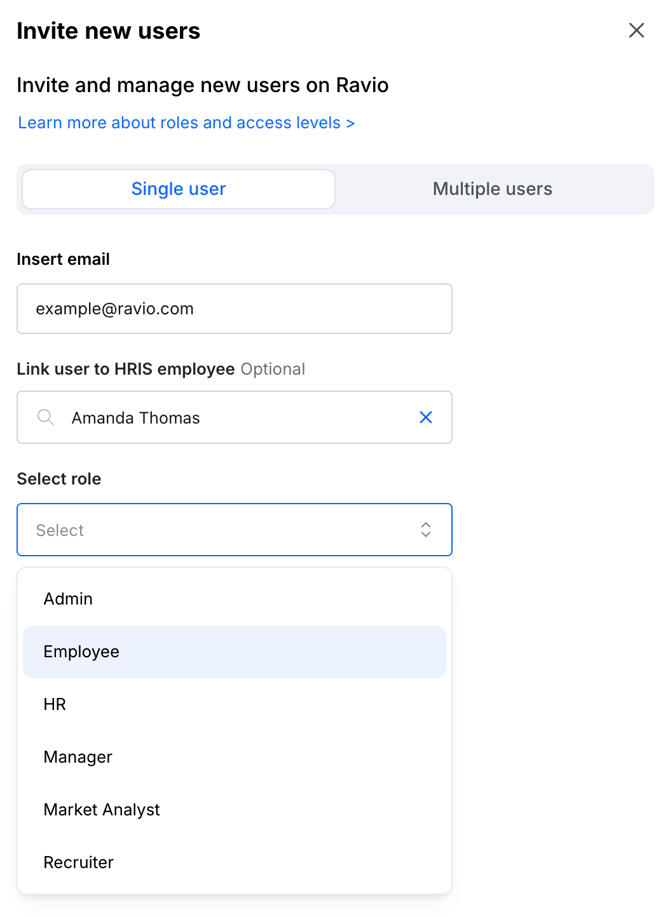
- Go to Settings → Users
- Click Invite user
- Enter their email address and select their role
- For Manager and Employee roles, link their Ravio user to their employee record – this is how Ravio identifies their position in the organisation hierarchy
- Click Send invite
Note: You do not need to link an employee record for Admin, HR, Market Analyst, or Recruiter roles.
Configuring platform access
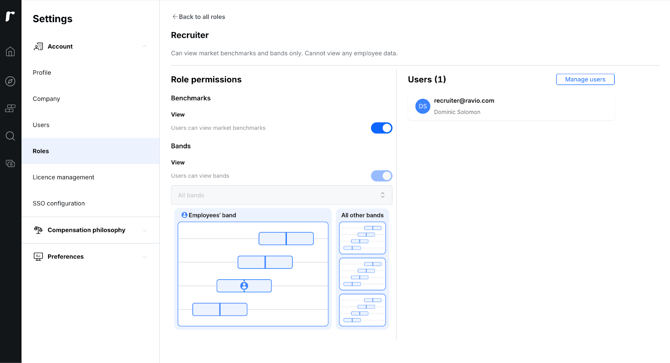
Platform access is configurable for Manager, Recruiter, and Employee roles – it controls whether they can view market benchmarks and which bands they can see.
- Go to Settings → Roles
- Select the role you want to configure
- Choose your settings:
- Market benchmarks – whether users with this role can access Explore the market
- Bands – which bands users can see (all bands, no bands, or only the band relevant to their own role)
- Save your changes – these apply immediately to all users with that role
Configuring organisational access for an individual user
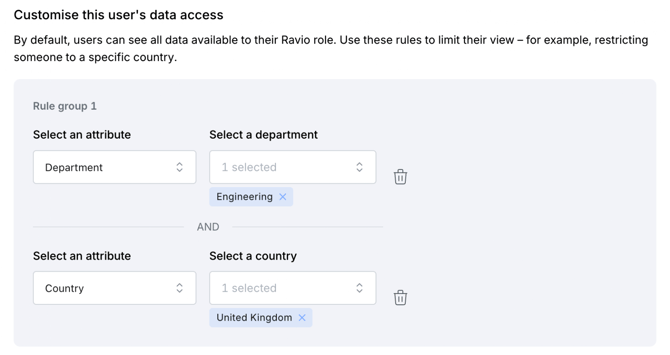
Organisational access is available for HR, Market Analyst, and Recruiter roles. It limits which parts of the organisation a specific user sees data for.
By default, a user sees all data available to their role. Rules narrow this down.
- Go to Settings → Users and click on the user's name
- Select the data access tab
- Click Add rule group
- Select an attribute – for example, Country – and choose the values that apply (e.g. United Kingdom, Germany)
- To add another condition to the same rule, add a second attribute within the same group (e.g. Department: Engineering)
- To give access to two separate combinations, add a second rule group
How rule groups work:
Within a rule group, all conditions apply together – the user sees data matching all of them. Multiple rule groups act as alternatives – the user sees data matching either group.
Example: An HR responsible for Engineering in the UK and Engineering and Research in France would have two rule groups:
- Rule group 1: Department = Engineering, Country = United Kingdom
- Rule group 2: Department = Engineering & Research, Country = Germany
What attributes are available? Country is available for all accounts. Department is available if your HRIS integration provides that data. More attributes will be added over time.
Excluding specific employees from an HR user's view
Exclusions are only available for the HR role, because HR users can see individual employee data. Recruiters and Market Analysts see bands and benchmarks only – there are no individual employees to exclude.
For HR users, you can exclude specific individuals – for example, members of the HR team itself – regardless of the organisation data access rules in place.
- Go to Settings → Users and click on the user's name
- Select the data access tab
- Scroll to the Exclusions section
- Search for and select the employees to exclude
- Save your changes

Editing or removing a user
- Go to Settings → Users
- Click the three-dot menu next to the user's name
- Select Edit to change their role or update their settings, or Remove to revoke their access
Remove users promptly when they leave your organisation.
Frequently asked questions
Can I give a user two roles?
Not currently. Each user has one role at a time. If someone needs a broader set of permissions, the HR role is the most likely fit – or get in touch with your Ravio CSM to talk through your setup.
We use SSO. Can we still manage permissions in Ravio?
Yes. Role assignments and data access rules are managed in Ravio independently of how users sign in.