
Overview
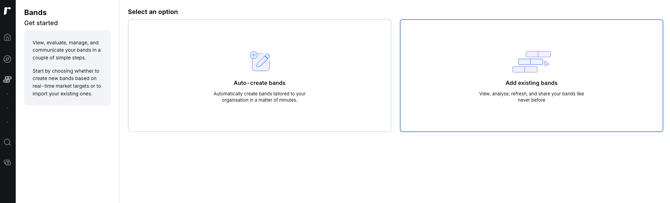
Ravio’s auto-create feature allows you to build a robust salary band structure from scratch using real-time market data. This is particularly useful for organisations that do not have existing bands stored in spreadsheets and want a data-driven "skeleton" to personalise later. By following this flow, you ensure your compensation philosophy aligns with current market benchmarks.
Prerequisites
-
Permission Level: Admin only
-
Data needed: Employees must be mapped to Ravio's job taxonomy
-
Subscription: Access to Ravio salary bands
Step-by-step instructions
Step 1: Select the auto-create track
Navigate to Bands > View in the left-hand sidebar. Select the Auto-create bands option to begin the setup flow.
Step 2: Define your band groups
Choose how you want to segment your employees into groups. You have three options:
-
General: A single group for the whole company.
-
Department: Groups based on internal departments.
-
Job position: A granular approach where each position has its own grouping (recommended for most customers).
Note: The number of job titles included in a band determines how many benchmarks contribute to that band’s data.
Step 3: Set levels and locations
-
Band levels: Choose between Multiple tracks (e.g., separate tracks for professional and manager levels) or a Single track grading system.
-
Band locations: Decide how geography affects pay. You can set bands by Office, Country, City, or a General location-agnostic band.
Step 4: Choose your band type
Select your approach to total cash:
-
Base salary (Bottom-up): You define the base salary and add a variable component on top. This is ideal if not all employees receive variable pay.
-
Total cash (Top-down): You start with the total cash amount, which is then broken down into base and variable components.
Step 5: Configure ranges and midpoints
Set your target market position by toggling the percentiles for both base salary and variable pay.
-
Band midpoint: Most organisations begin by targeting the 50th percentile.
-
Band width: Define the range spread (typically 15%–25%) to allow for employee progression within a band.
Step 6: Select market data and peer groups
Select Ravio real-time data as your source, or toggle on Custom market data if you have uploaded your own.
Finally, define your Peer group by industry, funding stage, or headcount.
Tip: Increasing granularity (e.g., selecting a very specific headcount) can reduce the number of available benchmarks. Use Technology as a catch-all if you need broader data.
Step 7: Review and create
Review your selections on the summary page and click Create bands. Once generated, you can use the Add analysis tool to view employee distribution against your new bands.Start viewing, analysing and sharing your bands.