
What is SFTP?
SFTP (Secure File Transfer Protocol), is a safe way to move files from one place to another over the internet.
❓ Think of it like a locked mailbox: you can drop a file in and lock it, and only someone with the right key can open it and see what’s inside.
It’s often used by companies to automatically send reports or data from one system to another without anyone needing to manually email or upload files. Because it’s secure and private, it is a trusted method for handling sensitive information.
Prerequisites
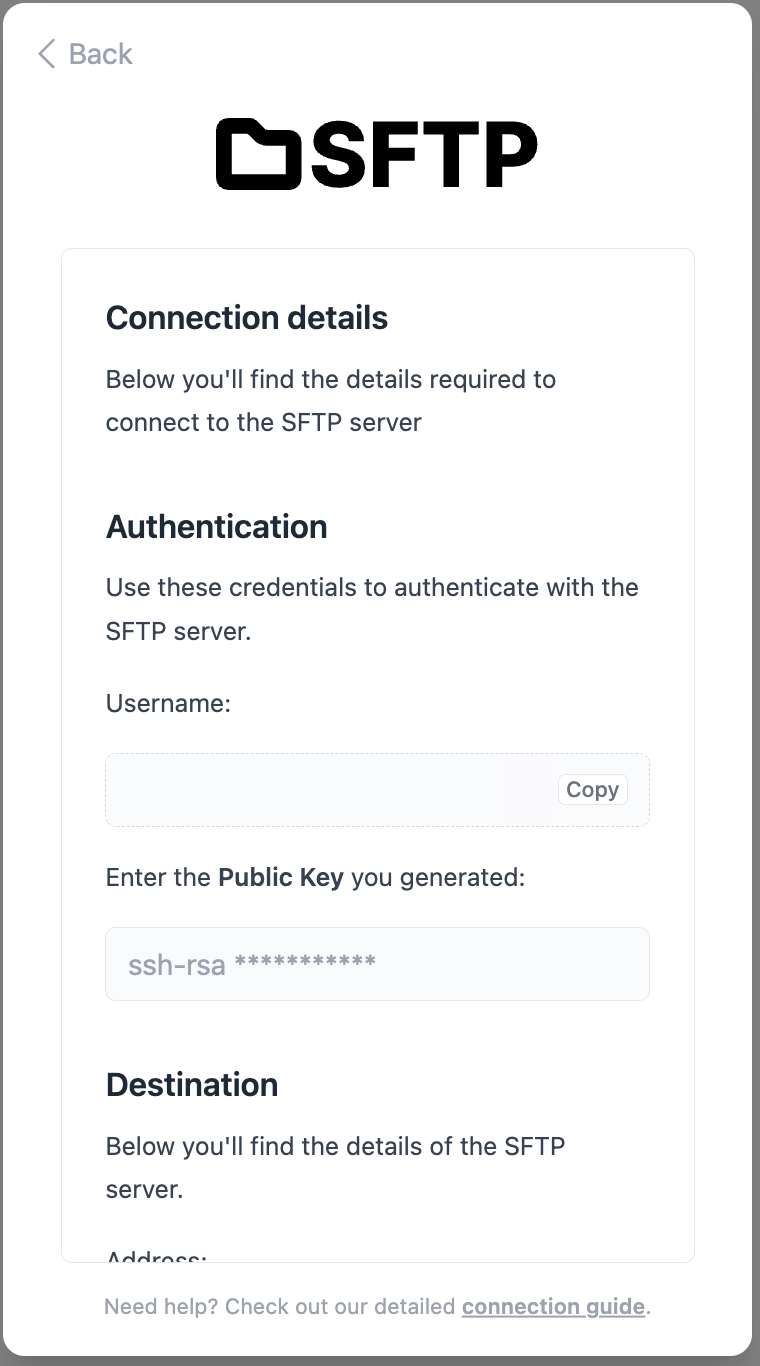
When setting up a connection via SFTP, you will have to share the credentials that you will use when transferring data (i.e. a ssh public key).
You will be provided with the:
- Username
- Connection information (address, port, directory)
- Filename
Step by Step Instructions
Step 1 - Decide which data to share
The first step in the connection flow will prompt you to select which data should be accessible in this integration. You have the option to switch off Gender and Date of Birth as required fields.
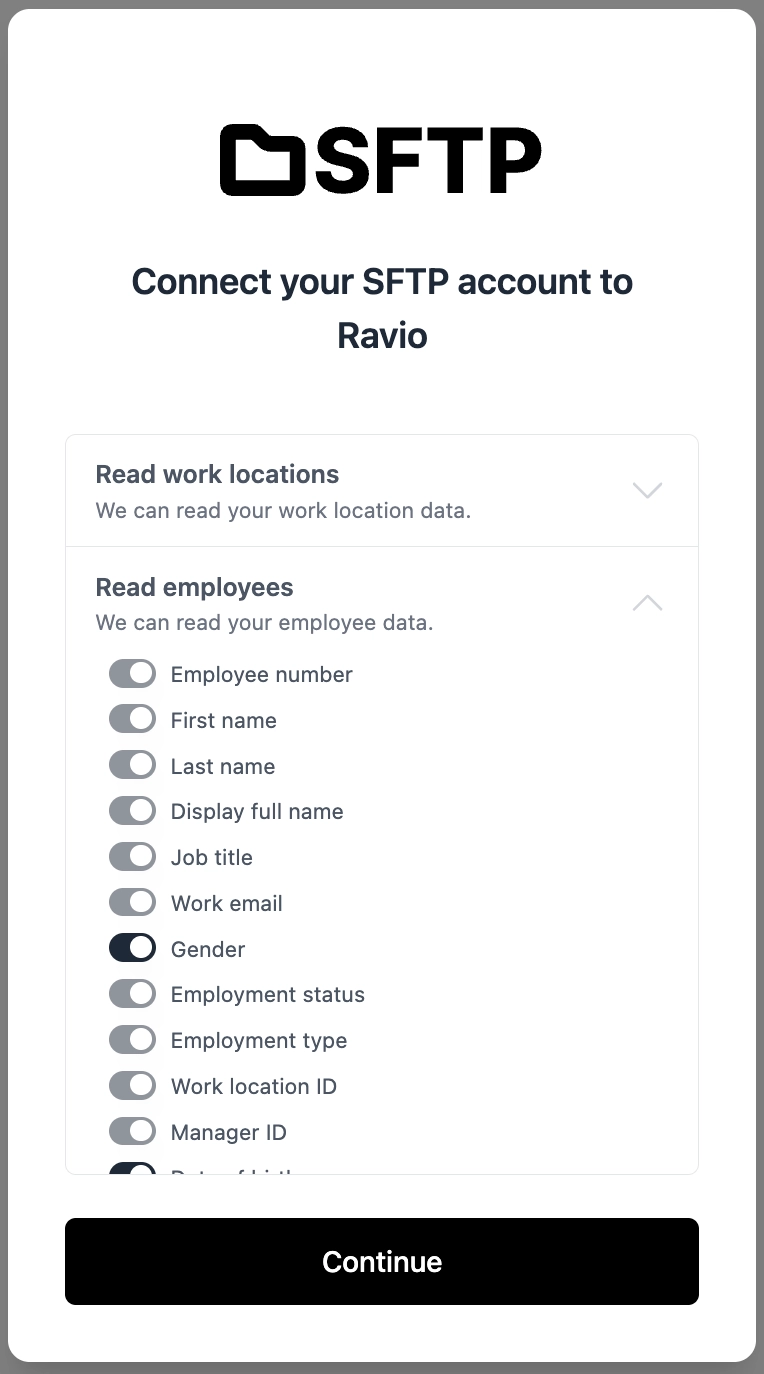
For SFTP exports, you are of course in charge of selecting which data is included in the file you transfer.
Step 2 - Select your credential type
Select the type of credential that your SFTP client will be using to transfer data. If the option you are using is not listed, select Option not listed, and we will try to support the method.
Once the credential type is selected, you will be presented with the remaining data points required to create the integration (see Step 3 for details).
Click Set up integration. Your SFTP credentials will be added to the SFTP server (provided you used a known credential type), and you can start sending data.
Step 3 - Create the Export in your Source System
Depending on your specific HRIS, you should create the export as a custom report and set this to export to the SFTP location and directory using the credentials in the Ravio onboarding flow.
- Use the Username in combination with your generated credentials to authenticate the transfer.
- Send the file to:
- sftp://sftp.kombo.dev
- port 22,
- Location is the root directory ("/").
- Use employees.* as the file name. We currently support both JSON and CSV as file formats (name your file employees.json or employees.csv respectively).
- The username and password will be set by yourself when you go through the Ravio onboarding process.
❓ If you need support creating this, our integrations team is available to help. You can reach them at integrations@ravio.com or book a call directly with them here.
Step 4 - Data mapping
- After the connection is set up and the first file is transferred, a one-time mapping will occur.
- Please note that because this one-time mapping process happens manually in the background, the connection will go through a quality assurance process before going live.
- No action is required from your side, and you will be notified if any additional input is required from you.
- Once the one-time mapping is complete, your data will start syncing automatically